Dear Network Web Editors, thank you for all your important work!
For those of you who are new to the WordPress or the EASA new website specifically, we have put together a short guide to help you get started. There is a bit of a learning curve at the beginning, but once you start giving things a go, it all tends to come together pretty naturally.
A full guide and few short how-to videos are included below, with step-by-step examples and tips on EASA’s posting policy. Before we start, two important issues:
Please remember that you can only post content when you are logged in as editor to WP. Log in at https://easaonline.org/wp-admin/ with your network editor details.
Please make sure that every image that you embed on your Network’s website has copyrights cleared.
The full guide with all the basics is here whenever you are ready (you must be logged in as WP editor to see it):
And here is some of this information, turned into short how-to videos:
How to add a new post
How to add a new post:
If your Network has news or something to share, “Add a new post” is probably what you will need. It is great for things like announcing a new convenor or comms officer, sharing a blog post, or any other updates from your Network.
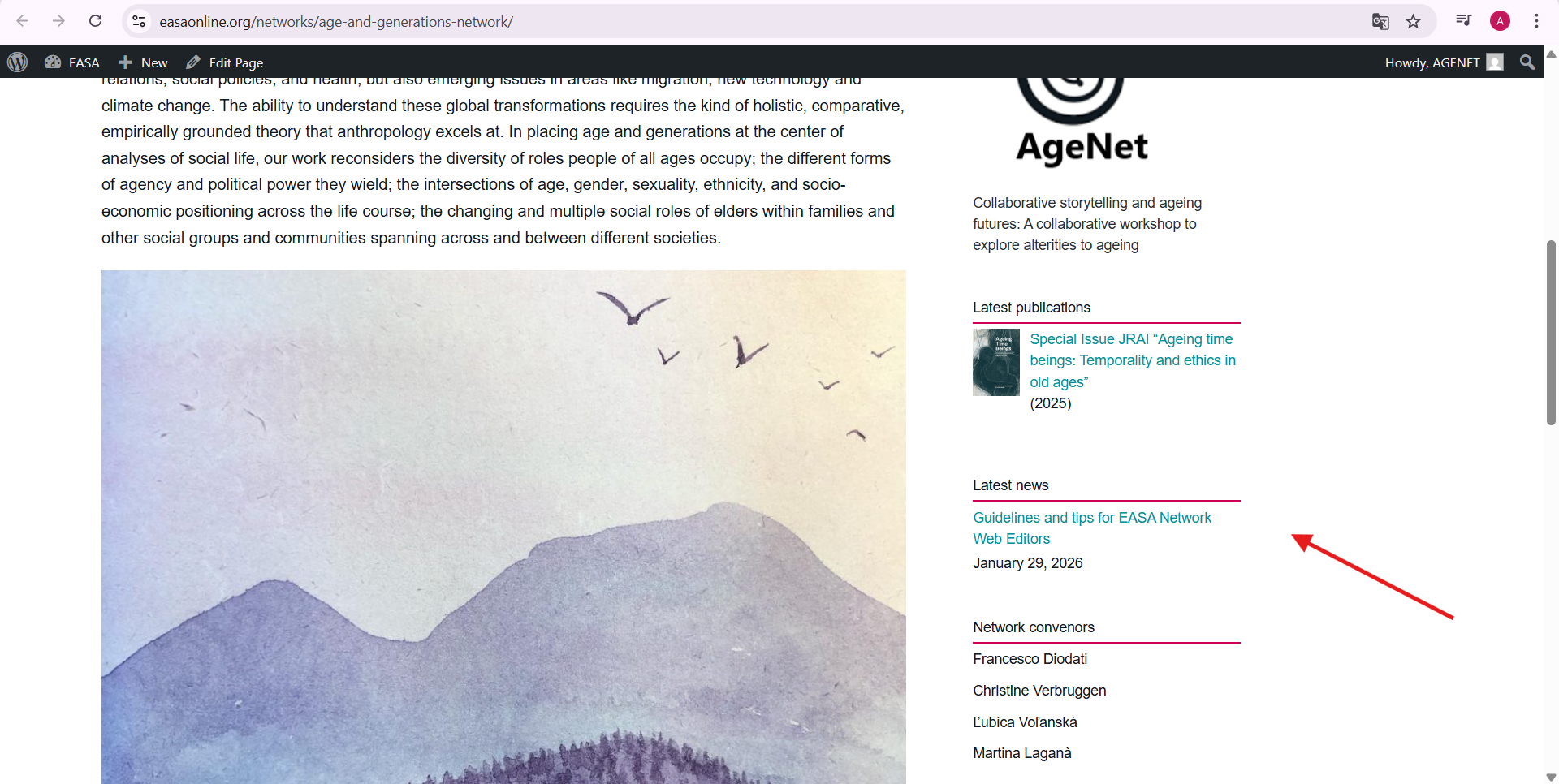
This post will be published on your Network’s home page, in the “News” box:
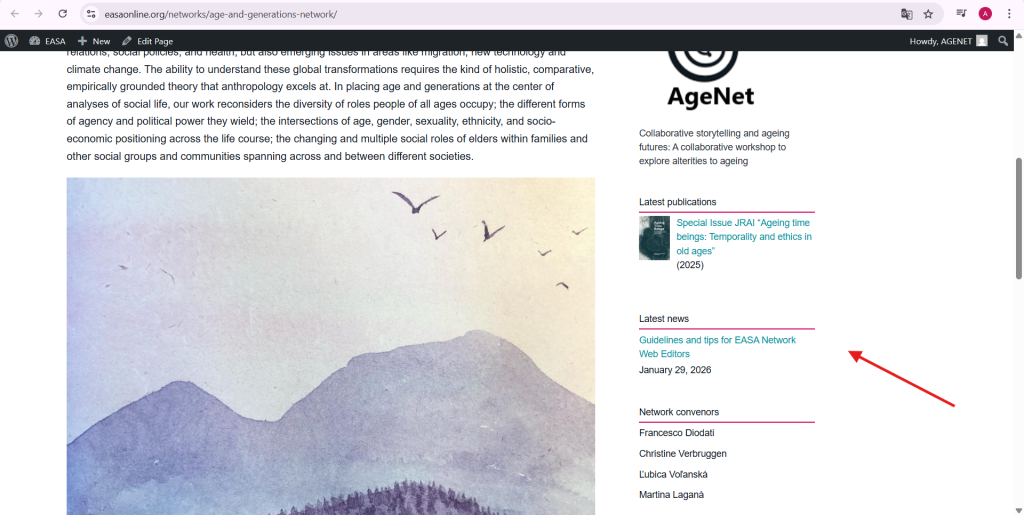
And here is a step-by step guide on how to add a new post.
How to add an event
How to add an event (including event’s call for contribution)
If your Network has an upcoming event you’d like to share – or a call for papers, abstracts, or contributions linked to that event – this is how to publish it on the EASA website. Please only add events that are organised by an EASA Network. If there’s an external event you’d like to share (or have been asked to share), the best place for that is your Network’s mailing list rather than the EASA website. You can find the mailing list address on your Network’s homepage.
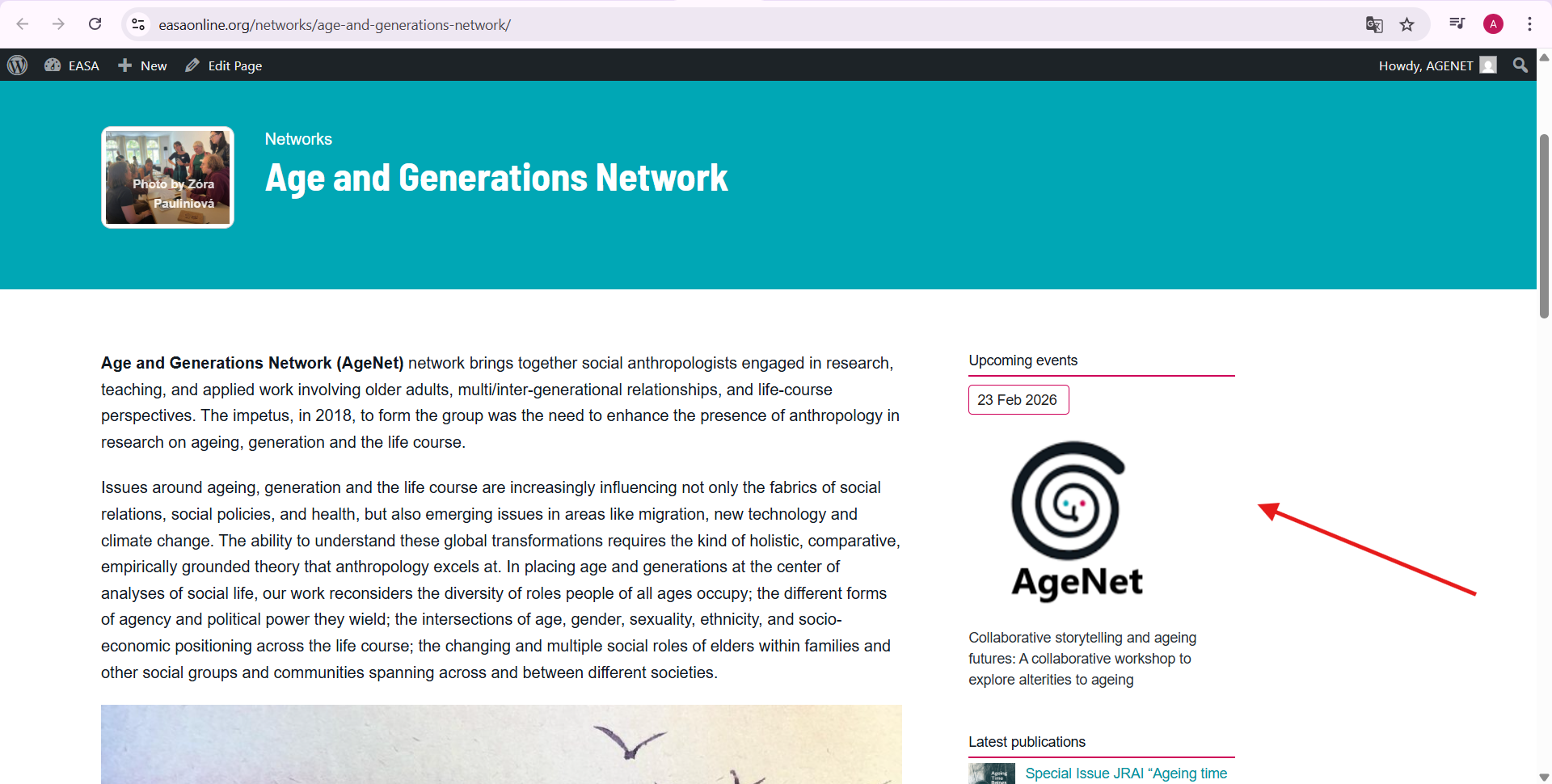
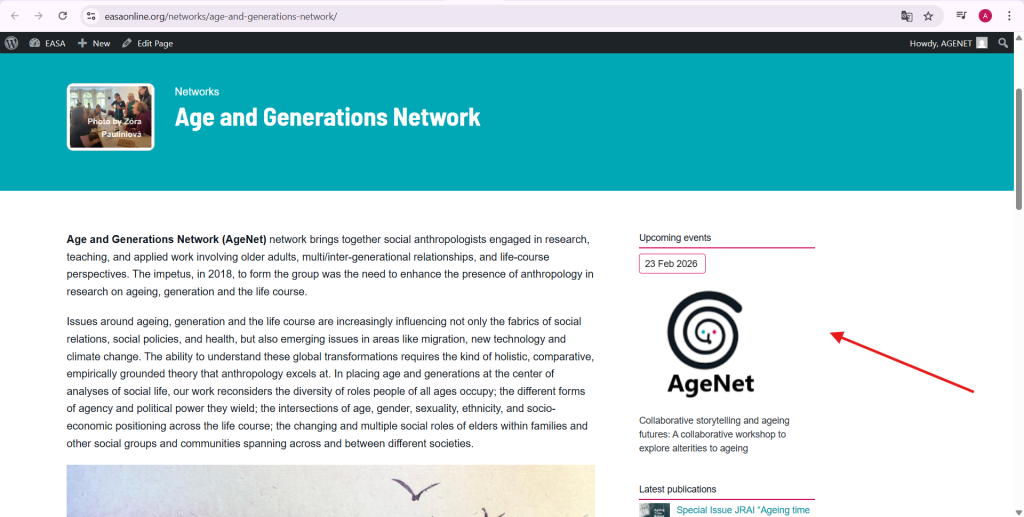
Once you post a Network event, it will ll automatically show up on the EASA’s events page, EASA’s open calls page, and on your Network’s homepage under “Upcoming events.”
Here is a how-to video:
There is another handy video that walks you through the “Add event” process – you can find it here:
https://cloud.nomadit.co.uk/index.php/s/maRG9CqswZo95G6
Adding Zoom-link button
When sharing a Network event, you’ll probably want to include a Zoom registration or joining link as well. One easy way to add it is shown below (of course you can also use the button option for any other kind of link).
How to add job vacancies, calls for fundings, calls for papers, etc.
Network members may occasionally ask you to publish a job announcement, call for funding, call for papers, etc. Feel free to invite them to publish their announcement themselves, and they can do so in two ways:
- via the Network’s mailing list (the address can be found on each network’s homepage)
- by filling the public Add jobs form – one does not neet to be an EASA member to do so
Of course, you can also publish this content via the mailing list or the public Add jobs form yourself.
Is that all? Editing your Network’s home page and tabs
Compared to the Events and Call pages, your network’s home page is your castle. We have made sure that your editorial options are wide open for you there. Please feel free to design the content of this page to your Network’s liking. While the main EASA’s header remains fixed, you have a large space for manouvre in terms of what else and how to publish on your main page. And of course it does not end there. If you would like to push your Network’s page in a new direction, create a new tab that would become a space other than the formats we have discussed above, by all means, please feel free to contact the NomadIT Web Support Team. We will be happy to join you in giving a think about it and bringing it to life as a part of the EASA’s website.
More on how to improve functionality of your pages:
How to add captions/credits to the images
It is important that the images you publish have their copyrights cleared. Avoid paying costly fines by ensuring that the image you use has copyrights cleared. Please also always acknowledge these copyrights by inserting the name of the copyrights holder in the “Caption” box. This is how to do this:
How to turn the colour of your background into the “EASA green?”
Depending on the content they publish, EASA network web editors may want to use the “EASA green” colour in the backgrounds they use. This is how to do it. Please make sure to change your text colour into white to increase accessibility.
For questions related to matters not covered in the instructions above, please contact web(at)easaonline.org