This guide will help you manage your Network’s page and publish content on the EASA website. Whether you are new to WordPress or simply need a reminder of how to perform a particular task, you will find instructions, practical tips and short how-to videos below.
Please note: If you don’t have time to learn right, now, you can always submit content via one of our public forms: add events, add publications, and add jobs.
Thank you for all your work in keeping your Network’s web presence up to date!
Getting access: Register, access, multiple editors.
1. Registering as a Network editor
If you have not yet registered as network web editor, please do so using the link below. Once you submit the registration form, we will set up a login access for you, We normally do it within 24 hours (but we do not work over weekends). Once we set this up, you will receive an email from the system asking you to reset your password – please click “Lost your password?” to do so.
Email us at web(at)easaonline.org if you have registered but not received this email within two working days.
Click below to fill in the registration form for network web editors:
2. Password – setting up/changing
Once we have your registration and have set up your WP editor access, you will receive and email from the system asking you to reset your password. Please use the “Lost password?” button to set up a new password.
You can also use the “Lost password?” button any other time when you want to change your password. Simply go to the WordPress log-in page and click “Lost password?”
3. Multiple (or change of) editors
❗Each EASA Network can have one editor login. If there is a rotation of network personnel and a new member takes on the role of network web editor, simply email us at web(at)easaonline.org to request a change of email address. In case multiple network members would like to have editor access to the website, we recommend using a shared email address to log in (e.g., networks gmail address or other).
Managing your network’s website: WP dashboard, editorial freedom and limitations
1. Editor’s dashboard
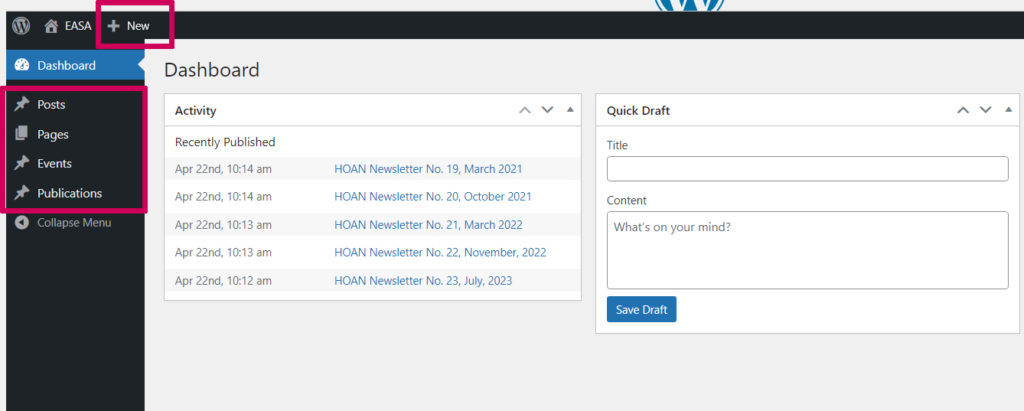
- Once logged in, you will see the Editor’s dashboard. It shows the content types which you can add using the +New link: Posts, Events and Publications.
- To edit existing content, use the left admin menu.
- To edit your network’s page, which contains the logo, intro text and convenors, go to Pages.
2. WordPress basics
If you are new to WordPress, there is a bit of a learning curve at the beginning, but once you start giving things a go, it all tends to come together pretty naturally.
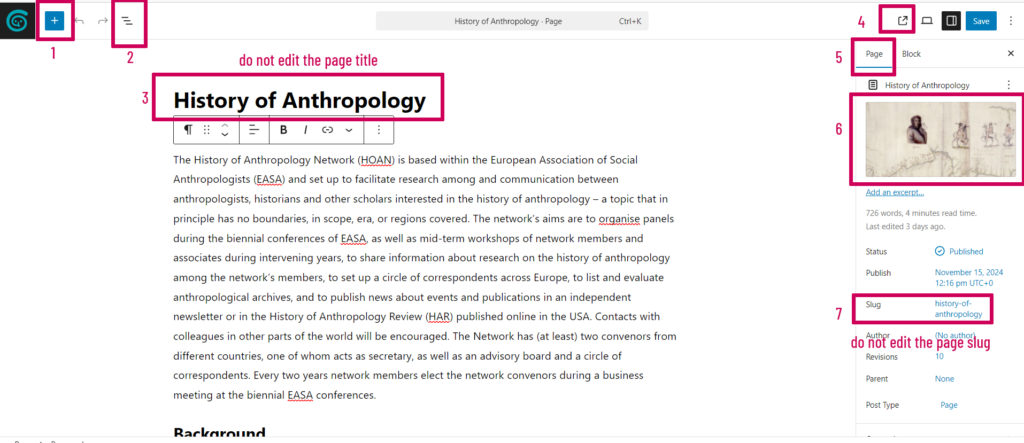
For the start, once you log in to your page and click “pages” in the left-side menu, try out the icons which we highlighted in the screenshot below– add block, document overview and view in browser. Note the main body text where you can add or remove text, as well as the Network image/logo to the right.
⭐ Right click on any block to see options such as DELETE. Save any changes!
💡 If you would like to get more guidelines on how to use WordPress, see this external guidelines:
3. What can you edit?
The EASA website is a collaborative platform, with many people contributing to its content, updates and maintenance. To keep its management organised, consistent and sustainable, editorial responsibilities are managed by the web team at web(at)easaonline.org.
The web team have editorial access to all pages, posts and events across the website. As the team responsible for building and maintaining the website, we oversee its overall structure, consistency and functionality, ensuring that content remains up to date and that the website as a whole is kept orderly and well maintained.
Network Web Editors have editorial access to the content relating to their own network. This includes editing and updating their network’s pages, posts and events, as well as events organised jointly with other networks. Each network’s section follows a shared website structure and set of standardised content formats, making it easier to maintain consistency and for visitors to navigate the website.
At the same time, we recognise that every network has its own needs and ways of communicating. If you feel that additional features or adjustments to your network’s pages would help support your activities, visibility or communication, we would be happy to discuss these with you and explore how we can make them work within the overall website structure.
4. Limits of editorial access
Network Web Editors can add, edit and delete individual content blocks within their network’s pages, posts and events. However, they cannot delete an entire page, post or event. If you would like to remove any of these, please contact us at web@easaonline.org and we will be happy to help.
We also ask you not to change the URL slug of your network’s main page. The slug is an important part of the website’s navigation and helps visitors find your network online. Changing it may affect existing links and make your network harder to find.
Your network’s homepage: Content, custom fields and special requests
What appears on your homepage?
Homepage is where you present your networks and its works. Use your homepage’s main body text to introduce your network, its history and aims. You can add your network’s logo or a representative image (and feel free to experiment with images in the main text too). The page also automatically displays selected content from other sections, including events, news and publications. You can also showcase your network convenors’ names, partner organisations, relevant external links and links to your network’s social media channels – see this section to see how.
What to publish on your network’s homepage?
The network homepage introduces your network and its work. Use it to present its history and aims, and add your network’s logo or a representative image (feel free to experiment with images in the main text too). The page also automatically displays selected content from other sections, including convenors, events and publications. You can also showcase your network’s partner organisations and associations, relevant external links as well as links to your network’s social media channels.
Homepage custom fields
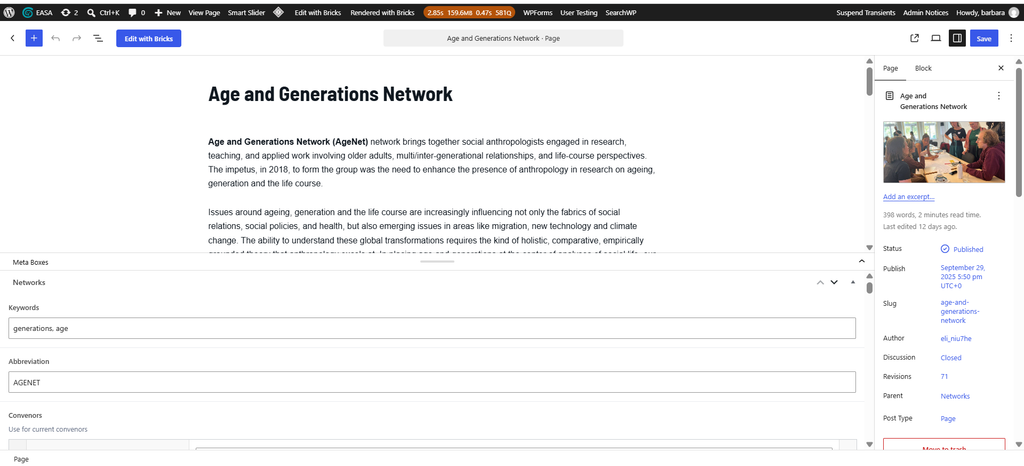
Below the intro texts and the network logo, the Network edit page has many custom fields where you can enter data such as: Convenors, Other groups (ie board and past convenors or even all members), external links and partners. Please scroll down past the text window and study these fields. Some will filter into the Network’s main Home tab, and any people fields (convenors and other groups) will be visible under “Team.” See above for an example for how this can display.
We hope these fields are be self-explanatory and we urge you to use them rather than entering their data in free text in the main body. Using the custom fields will aid formatting, and make the info display in the correct places. Custom fields also facilitate indexes, filter and search for content across the EASA website.
The custom field to use when new network convenors begin their mandate is “Convenors”. See the next section for instructions on how to use it – the same steps apply to all other custom fields.
Making the most of your network homepage
We have made sure your editorial options are varied. Feel free to shape the page to reflect your network’s identity, interests and activities. While the main EASA header remains fixed, you have plenty of room to experiment with what you publish and how you present it. If you would like to take your network page in a new direction or create an additional tab with content beyond the standard formats described here, just email web(at)easaonline.org. We’ll be happy to think it through with you and help bring your ideas to life!
Adding convenors and other groups: instructions and video guide
Even though the convenors’ full profiles are displayed on the Team page, you need to edit the HOME PAGE to add or edit these profiles. Please note that the convenors custom fields should always be filled with the names of the current (not past) convenors. These names are automatically displayed also on the right site of the network’s home page .
As a courtesy, some networks also list the names of past convenors on the Team page or, where applicable, provide information about their advisory board members. To add them to your page, simply click “Add group” in the “metabox” at the bottom of the Home page edit window.
See quick video instructions:

Adding posts and news: Instructions and display
How to add a new post:
If your Network has news or something else to share, “Add a new post” is probably what you will need. It is great for things like announcing a new convenor or comms officer, sharing a blog post, or any other updates from your Network.
This post will be published on your Network’s home page, in the “News” box:
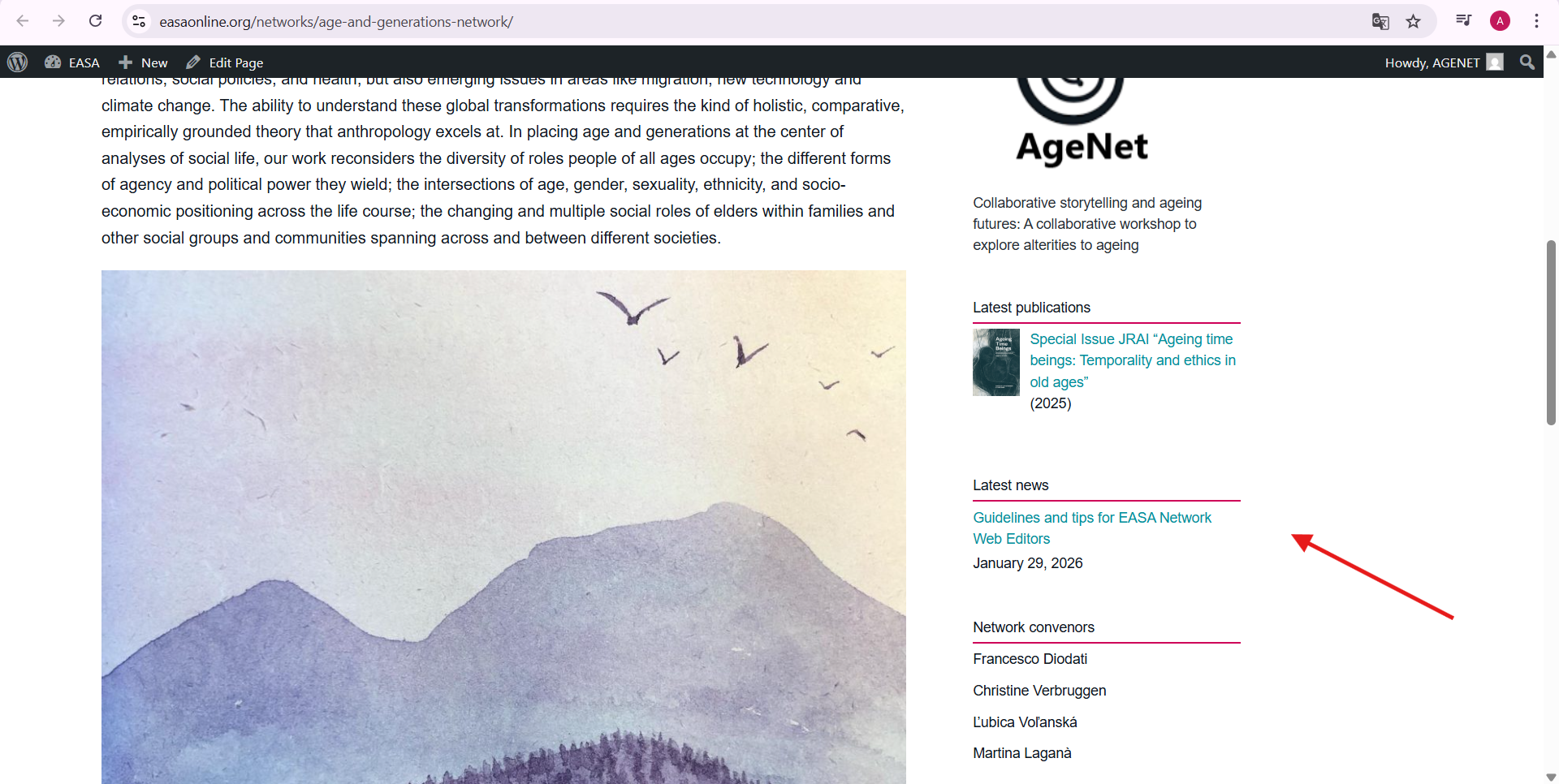
And here is a step-by step guide on how to add a new post.
Adding events and calls for contributions
When should you add an event?
Only add events organised by an EASA Network. External events should be shared through the Network mailing list rather than the EASA website.
Adding an event
Go to “Add event” in the dashboard. Please add the title for the event, rather than “call for papers”, as there is a call for contributions field below text which we use to order calls by date.
You can only add events in your own network, so if the event is co-organised by more than one network, please add the event and then drop us a line to web(at)easaonline.org with the url of the event and details of the other networks.
To avoid creating duplicates, please check the events page before you add a new event, or use the events search on the same page (search by title). You can also browse your network’s page to see if the event is listed there.
You can add as much data as you would like for events, but please note that the event will not save unless you fill in the date field and tick the copyrights box.
Once you have published your event, you can return to edit or change it to draft.
Note the Series and categories to the right to see how you can classify the event to help user determine the type of event.
Where will your event appear?
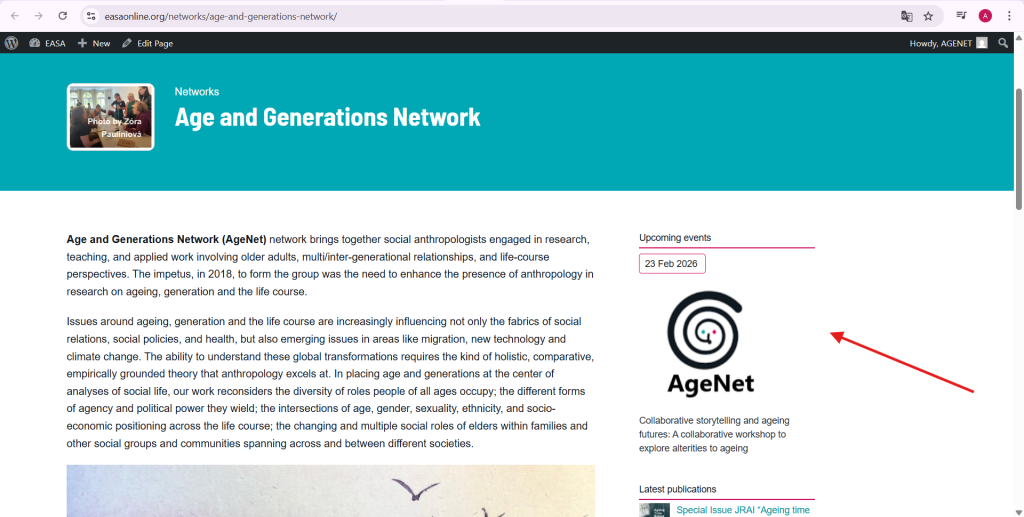
Once you post a Network event, it will ll automatically show up on the EASA’s events page, EASA’s open calls page, and on your Network’s homepage under “Upcoming events.”
EASA web support team regularly checks the Events page to identify upcoming network events to share on EASA social media channels. So make sure to publish your events on your network page!
Event series
For new events series, please contact us and we can set up a landing page for an event series into which you can publish events.
Example: https://easaonline.org/series-ethnography-of-the-far-right/
Past Events
Once your event is over, you can update its original event post with a recording, event report, photos or a short thank-you message. There is no need to create a new post: events automatically move from upcoming to past events on the EASA Events page once their date has passed. Simply edit the existing event post and add your follow-up materials, so visitors can easily return to the event page and access its recordings, reports and other resources.
Adding registration and Zoom links
When sharing a Network event, you’ll probably want to include a Zoom registration or joining link as well. One easy way to add it is shown below (of course you can also use the button option for any other kind of link).
Co-organised events, event series and event reports
If an event is co-organised by several Networks, one Network should add it and then inform web(at)easaonline.org, providing the URL and details of the other Networks.
Contact the Web Support Team to set up a landing page for a new event series.
Event reports can usually be added to the existing event rather than creating a separate post. Contact the team if a separate post is needed.
Adding publications
Publications should only be added if they are edited, authored or published by EASA members and in the topic of a network. Scroll below the body text window to see custom fields for editors, authors, year, etc
Please try to find a cover image for any publication and add this in the “featured image” field.
Scroll down below the text window to see the custom fields for publications:
- Print or digital publications should have an ISSN, ISBN or DOI.
- Video and podcasts can also be relevant publications but please add them as events rather than publications, if they have a date, so we can put them in the calendar.
- If your publication is a resource such as bibliography or link, it could be more relevant to add as a post with the tag Resource rather than a publication (see below for Resources)

Social media: preparation and publishing
Make your post social-media ready!
For any content you edit or add, please consider how this will look when shared to social media. The 3 elements which comprise the social media preview are: Title, Featured image and Excerpt. If you populate these fields with care, your content will look good when shared to the EASA social media channels.

Promoting your content on social media
Please drop us a line to web(at)easaonline.org so we can promote your event or other news on social media.
Images, video and audio: How to embed
Embedding images, video and audio files
Links to video and audio can be pasted straight into the text editor and will normally embed automatically, both for posts, events and publications.
Events also have a custom field where you can embed urls, such as Spotify podcasts or Youtube links.
If you have problems with the display of such content, please get in touch to web(at)easaonline.org and we will assist.

Copyrights for images
Please make sure all images or other artistic material which you add to our website is attributing the creator where necessary, and the the creator has given their permission for you to use their material.